
How to edit Menu Sections
Menu sections are the headings customers browse on your order page: Breakfast, Lunch & Dinner, Sides & Sauces, and whatever suits your kitchen. Arranging them well makes your menu easy to shop and puts your stars front and center.
Where they are
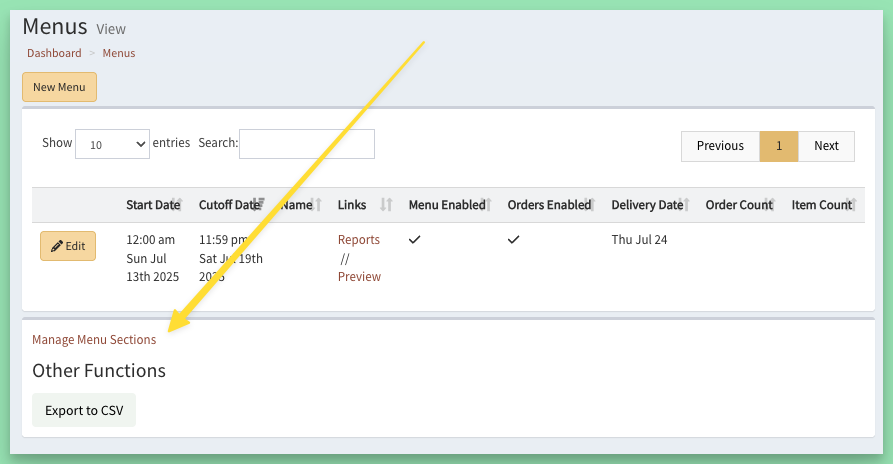
Go to Menus > Menu Sections, or click Manage Menu Sections at the bottom of the Menus page.
Adding and arranging sections
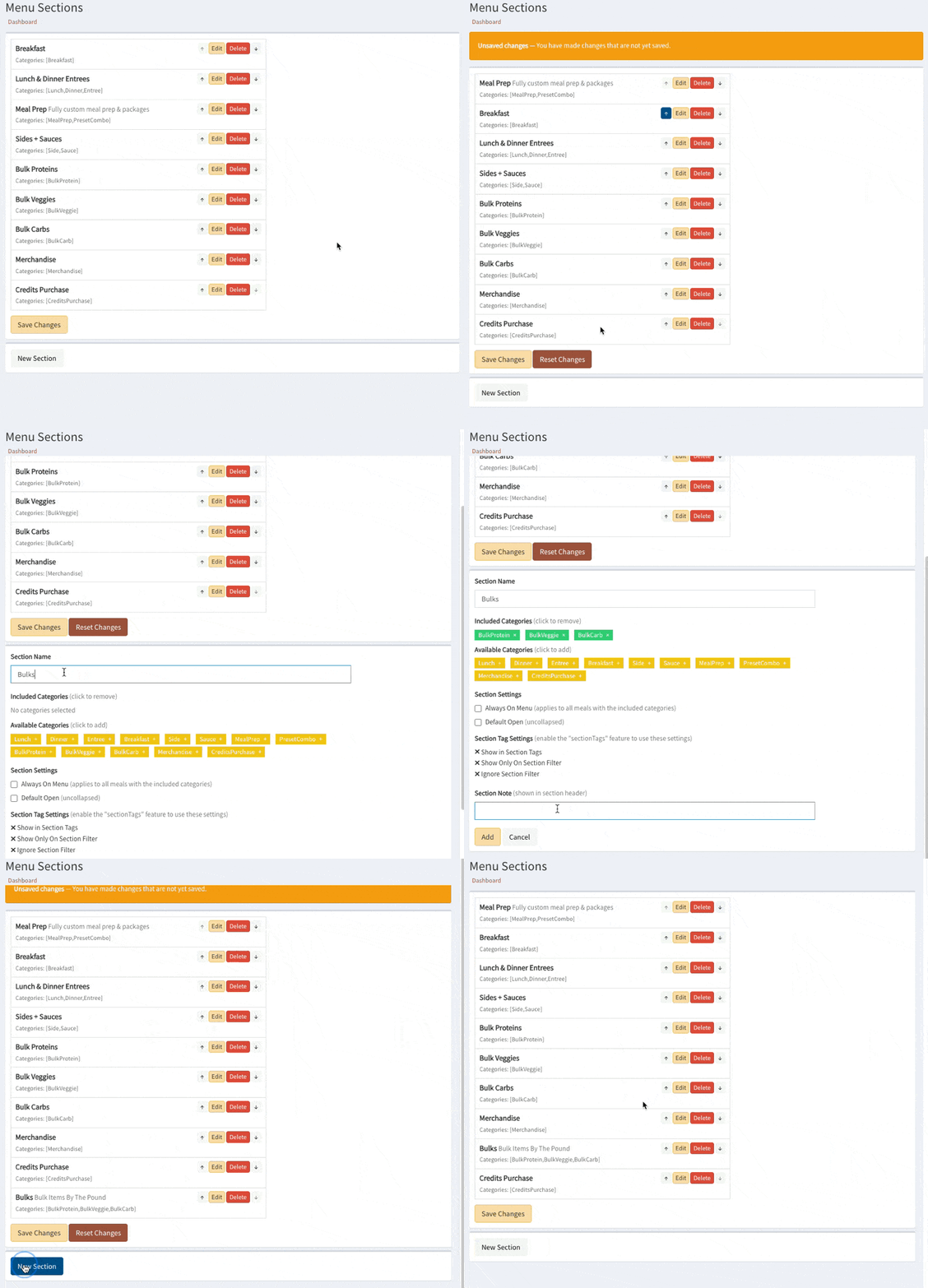
Add a section with New Section, delete one you no longer need, and use the arrows to put them in the order you like.
Setting up a section
For each section you choose:
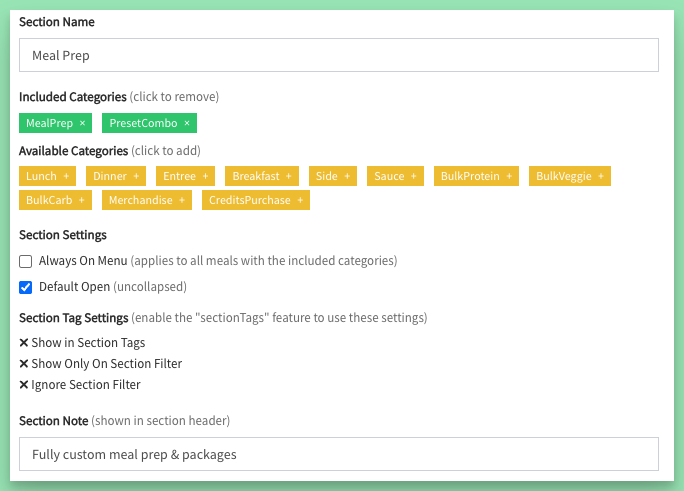
- Section Name: the heading customers see.
- Included Categories: which meal categories appear in it. Click a category to add or remove it.
- Always On Menu: show every meal in these categories on every menu.
- Default Open: whether the section starts expanded on the order page.
- Section Note: a short line under the heading, such as "Fully custom meal prep & packages".
Saving your changes
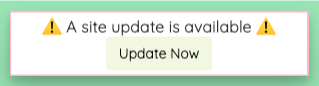
Your changes wait for your review until you click Save Changes, then OK. They publish themselves within seconds. When the "A site update is available" notice appears, click Update Now (or open the site in a new tab) to see them.
Tip
Lead with what sells best. A section customers see first gets the most orders.
Keywords: menu layout
Related