
How to create new meals
New dish on the way? Adding it to your site takes a couple of minutes, and you can dress it up with photos, descriptions, nutrition and options whenever you like.
Creating a meal
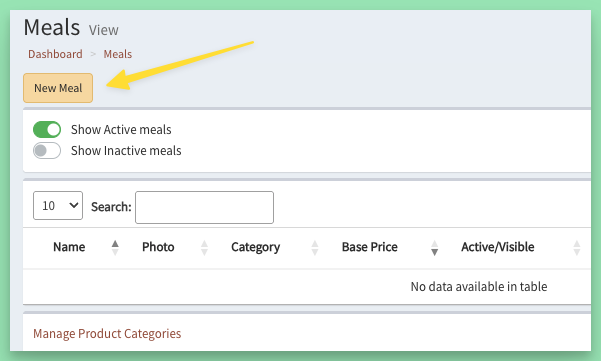
Step 1: go to Meals > Meals and click New Meal.
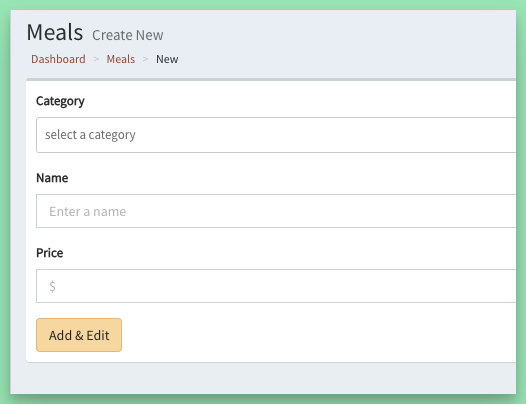
Step 2: choose a Category, and enter a Name and a Price. Click Add & Edit.
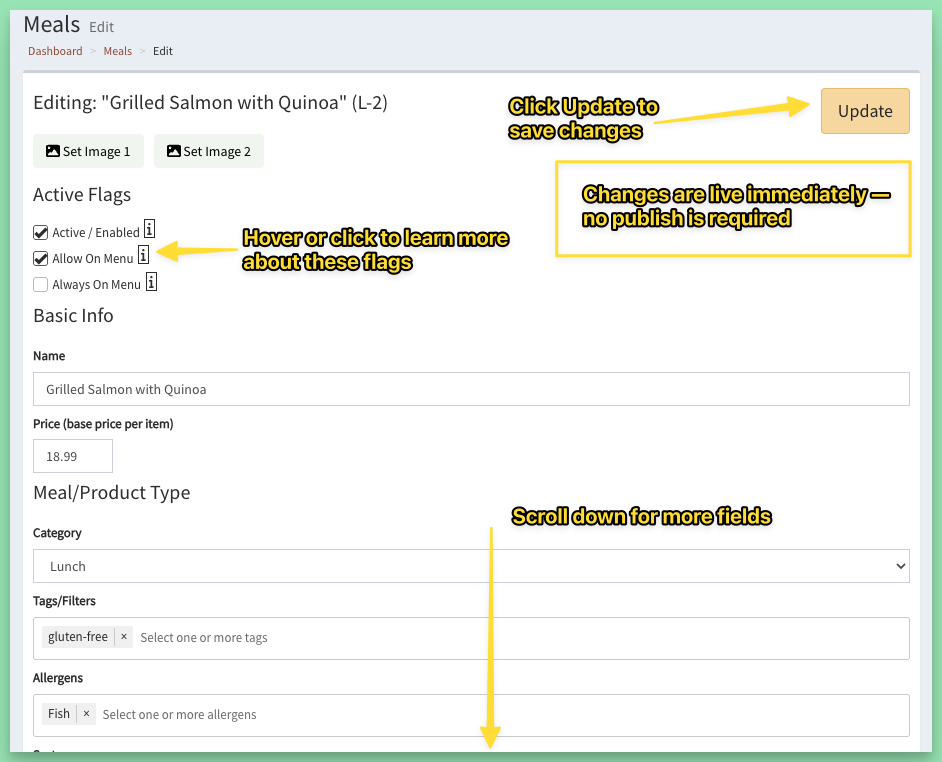
Step 3: fill in anything else you would like: photos, a description, ingredients, tags, allergens and more. It is all optional. Click Update to save.
Customizations: sizes, sides and more
Let customers make a meal their own with Customizations: a size, a choice of side, extra protein. Add as many as you need, each with its own options and extra price.
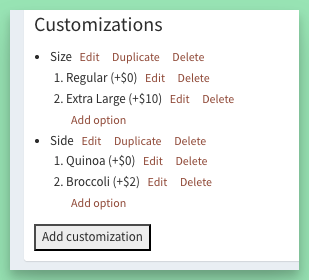
The first option in each customization is the default. In the example above, a customer who changes nothing gets the Regular size with Quinoa.
Good to know
- Changes to meals go live right away. No publish needed.
- A new meal does not appear on your menu until you add it to one, unless you tick Always On Menu. See How to create a new menu.
- Start each meal fresh, or use Duplicate & Edit on a similar one to save time.
- Updating lots of meals at once? See How to bulk edit meals and pricing.
Here is a quick walkthrough:
Keywords: add meal, menu item
Related