
How to enable payments
Ready to take orders? Connecting a payment processor takes a few minutes, and then customers can pay with any major credit or debit card, with the money landing in your own account.
Connecting Stripe
Step 1: go to Manage Site > Billing.
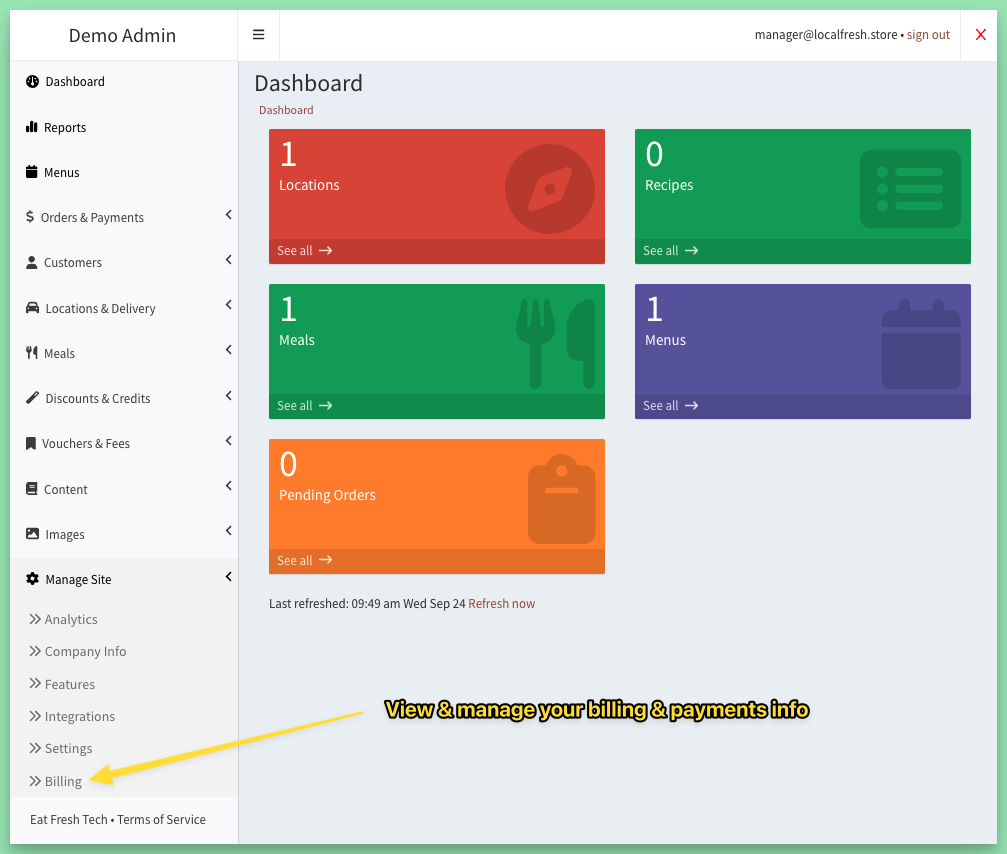
Step 2: under Payments Processor, click Connect Stripe and follow the prompts.
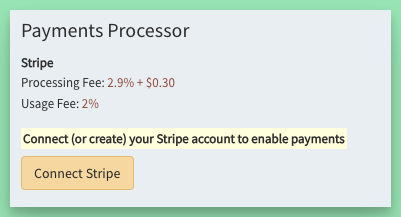
No Stripe account yet? You can create one right in the same steps. Already have one? It links in a couple of clicks. For the bigger picture, see Payment processors: how your site takes payments.
What customers see at checkout
- A compact, modern card form. Customers who use Stripe Link fill in their saved card with one tap.
- Logged-in customers can buy a gift card with the card they have on file.
- If their bank asks for an extra security check on a saved card, the customer gets a Billing Update Required email that explains what to do.
- A setting can open the billing form as soon as the order page loads, for sites that prefer it.
Security and privacy
- Card details are stored securely with Stripe, never on your site.
- Your site keeps only the card type and last four digits (for example, VISA 1234), so customers can see which card they are using.
- Payments go to your Stripe account, and Stripe pays out to your bank. Once your account is active, next-day and instant payouts are available.
- Each payment carries a processing fee (Stripe's) and a usage fee (Eat Fresh Tech's), both taken automatically. Your reports itemize every fee. See Your reports: a tour of the Reports page.
Keywords: accept payments, merchant account
Related
Was this helpful?