
How to add a new pickup location
Pickup locations are a win all round. Customers collect their meals somewhere handy, you save on delivery runs, and a partner such as a gym, café or office gets extra foot traffic. You can add as many as you like, at no extra charge.
Adding a location
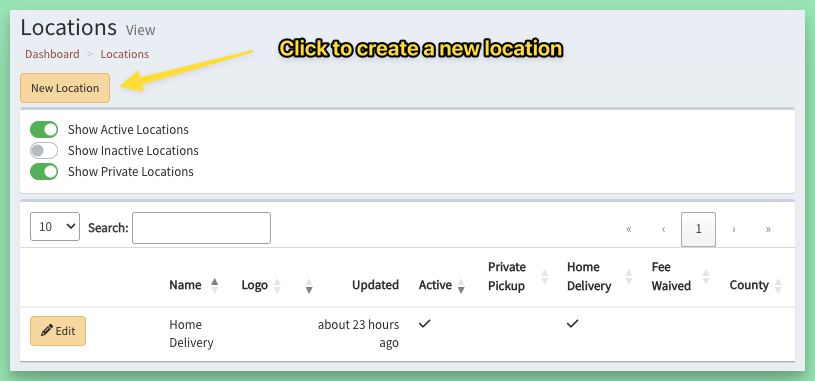
Step 1: go to Locations & Delivery > Locations and click New Location.
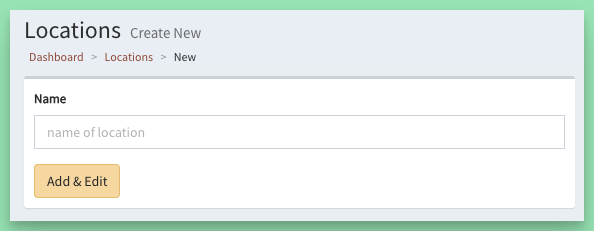
Step 2: enter a name for the location and click Add & Edit.
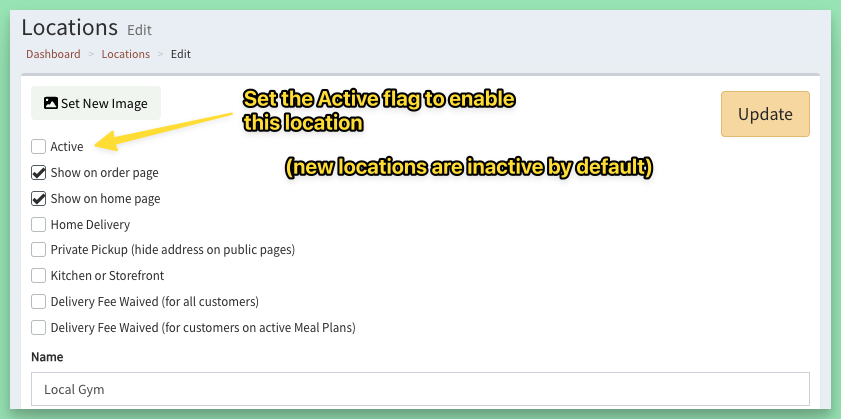
Step 3: fill in the details and click Update. A new location starts Active with Show on order page ticked, so customers can pick it right away. Setting it up for later? Untick Show on order page until it is ready.
The details that matter most
- Location Address: puts the location on the map on your order page and in order emails.
- Pickup Window: tells customers when and where to collect, for example "Mondays 3 to 7pm, front desk".
- Private Pickup: hides the address from public pages while keeping it available for your drivers and reports. See How to create a private pickup location.
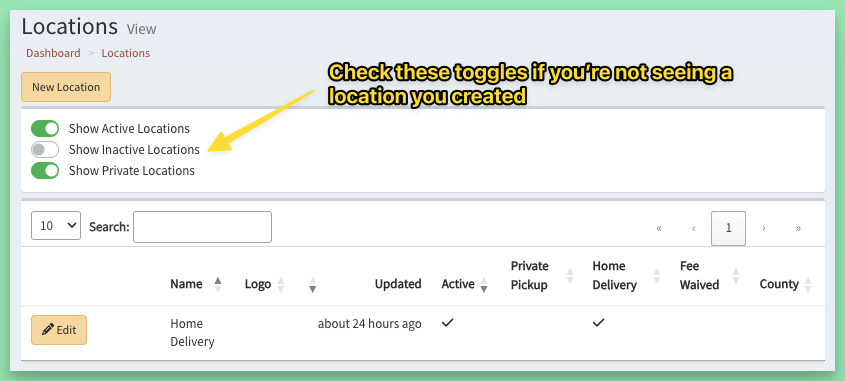
Not seeing a location you created?
Check the switches at the top of the Locations list: Show Inactive Locations and Show Private Locations decide what the list shows.
Keywords: pickup spot, store location, hours
Related